
Monday, March 26, 2012
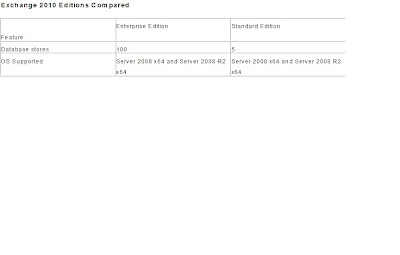
Exchange edition compared

Thursday, June 16, 2011
Kaspersky 8 Update Availability – forefront SP2 Rollup
Monday, March 7, 2011
New features in the unified messaging of Exchange 2010
Hi Friends,
In this article, let’s see the new features in the unified messaging of Exchange 2010.
The following is a list of new Unified Messaging features that have been included in Exchange 2010:
- Personal auto attendants (call answering rules)
- Additional language support including in Outlook Voice Access and Voice Mail Preview
- Enhancements to name lookup from caller ID
- Voice Mail Preview
- Messaging Waiting Indicator
- Missed call and voice mail notifications using text messaging (SMS)
- Protected Voice Mail
- Built-in Unified Messaging administrative roles
For more information about the new Unified Messaging functionality and new voice mail features.
Functional Descriptions
Voice Mail Preview: Exchange Server 2010 will facilitate the cumbersome task of navigating through voice messages. With Exchange Server 2010 speech-to-text translation, the user can read the contents of the audio recording in the same fashion they would read an e-mail. Furthermore, if the resulting voice messages are opened using Microsoft Office Outlook 2010, the text of the voice mail preview will become "actionable". Recognized names, contacts, and phone numbers will all be identified with icons that the user can select to add contacts, call using Office Communicator, or send e-mail. To facilitate navigation of the audio, clicking in the text will cause the voice mail to jump to that word and continue playing.
Protected Voice Mail: Exchange Server 2010 solves the problem of unauthorized distribution of the messages by securing the message content, specifying the users who may access that content, and the operations that they may perform on it. It uses Active Directory Rights Management Services to apply Do Not Forward permissions to voice messages that are designated either by the sender (by marking the message as private) or by administrative policy. This prevents the forwarding of protected voice mails in a playable form to unauthorized persons, whatever the mail client used.
Message Waiting Indicator (MWI): Now with Unified Messaging, users are notified of the presence of new/unread voice mail by lighting the lamp and providing a count on their supported desk phone. Additionally, users can configure their text messaging notification account to receive the beginning content of the voice mail preview in the SMS.
Auto Attendant: Users are often looking for a person in an organization, but are unsure of the extension or exact phone information. Exchange Unified Messaging's Auto Attendant enables users to easily navigate to the person they are trying to reach when calling an organization with either the telephone keypad or speech inputs to navigate the menu structure, place a call to a user, or locate a user and then place a call to that user. An auto attendant gives you the ability to:
- Create a customizable set of menus for callers
- Define informational greetings, business hours greetings, non-business hours greetings, and holiday schedules
- Describe how to search the organization's directory and connect to a user's extension
- Enable external users to call the operator
Call Answering Rules: Unified Messaging enables users to have more control over their call flows. For a salesman, this could mean the difference between sending an important sales lead to his voice mail instead of finding him on his cell phone or home phone. Call Answering Rules present callers with custom greetings, Find-Me, and call transfer options, in addition to leaving a voice mail. Moreover, these rules can be preceded by conditions (such as caller-IDs, time-of -day and Exchange free/busy status), giving end-users greater control over how they can be reached over the phone.
Outlook Voice Access: Users now have control over their Inbox with Outlook Voice Access via a telephone keypad or voice inputs. This enables anywhere access to their mailbox when a user is away from a computer or Internet-connected device. Now users no longer have need to worry about being late for appointments or being disconnected when traveling, as they can instantly call into their mailbox to manage their calendar, contacts, and e-mail.
Enhanced Caller ID: Users can get more context and information about their callers with Enhanced Caller ID. Callers are often not a part of a user contact list or organization's directory. For these cases, Windows Live Search will be used to try and determine the calling party. If a match is found, the result will be placed on the calling line of the message to better inform the user where the call came from.
Language Support: More users can now listen to and interact with their e-mail and voice mail in their native language or dialect. Exchange Server 2010 offers a broad range of language support with support for 16 languages including three varieties of English, plus Mandarin, Cantonese, European and North American versions of Spanish and French, and several other European languages.
Thanks
Logan
Tuesday, February 1, 2011
Exchange 2010: DAG Features
Sunday, September 12, 2010
"Here you have" worm mail
Friday, January 29, 2010
New features Available in Exchange Server 2007 SP2:
Sunday, December 27, 2009
Online Move Mailbox feature in Exchange server 2010:
Post Step after Exchange server 2010/2007 and Make it Live:
Saturday, November 14, 2009
Exchange Server 2010: Previous exchange server Coexistence
Message Routing in Exchange 2007 vs. Exchange 2003 Multisite Environment:
Wednesday, November 4, 2009
Exchange server 2010’s new features:
Sunday, October 25, 2009
Configuring LCR – Local Continuous Replication:
Hi friends,
This article briefs the configuring LCR in the exchange 2007 server. As it name implies, the local continuous replication is the new feature in the exchange 2007 and it has the local copy of the database just like a mirror. Either you can do either in GUI or powershell, here I have explained in the powershell
Design the structure first, for example will have the below for our configuration,
SG1 – storage group name, SG1DB1 – database
Source system path (disk1): c:\SG1
Source log path (disk1): c:\SG1\log
Source edb path (disk1): c:\SG1\DB
Destination system path (disk2): D:\SG1LCR
Destination system path (disk2): D:\SG1LCR\log
Destination system path (disk2): D:\SG1LCR\DB
1. Enabling Database copy,
#Enable-DatabaseCopy –identity ‘servername\sg1\sg1db1’ –CopyEdbFilePath ‘D:\SG1LCR\DB\SG1DB1.edb’
2. Enabling Storage group copy,
#Enable-StorageGroupCopy –identity sg1 –CopyLogFolderPath ‘D:\SG1LCR\log’ -CopySystemFolderPath ‘D:\SG1LCR\DB’
3. To check the status of the replication,
#Get-StorageGroupCopyStatus
The LCR Configuration has been completed now; you can check the logs which are copied from the source to the destination and also any new generated logs will automatically seed to the destination location as we defined above.
Restore from the LCR copy:
Let us assume that if something goes wrong with the source database, we are in a position to restore from the replica. So, let’s see how to do the restore,
1. Dismount the database - #dismount-database sg1db1
2. Restore from replica - #Restore-StorageGroupCopy –identity ‘servername\sg1’
3. Mount the database back - #mount-database sg1db1
4. Now, the point to be noted is old LCR configuration of SG1DB1 is no more enabled. Please enable the LCR for this Storage group again and also clear the old logs so that it will start seeding from the source from the first.
Hope the above is useful.
Thanks
Logan
971-552596187 logu_microsoft@hotmail.com
Difference types of Mailbox in Exchange 2007:
Unlike previous version of exchange, the general mailbox has been classified into four types. But there are few difference b/w each type.
1. User Mailbox – for traditional user mailbox.
2. Room Mailbox – for meeting rooms
3. Equipment Mailbox – for equipments like projector, TV, etc. It is just like creating AD accounts for such objects.
4. Linked Mailbox – Hosting mailbox for users in separate forest.
In the above, the core mailbox attributes are same except few are different.
1. Basic notification GUI symbol is different for each object.
2. Resource mailbox (i.e., both room and equipment mailbox) are by default will be in the disabled state.
3. In OWA Ã Options, we have the “resource setting” only for the resource mailbox.
4. In creating a calendar meeting either in outlook or OWA, we have the scheduling assistant for configuring the meeting in which, “Select room” option will there and will list the entire room mailbox available in the organisation.
5. Also while adding attendees in the address bar, in the address book window; we will have the classified option as “default global address list” and “All rooms”. The latter is specifically designed to list the room mailbox alone.
6. On the attribute side, Isresource attribute of a mailbox will be set as “True” for the resource mailbox and “False ” for the user mailbox. The attribute resourcetype attribute will be set as “room” and “equipment” respectively.
Useful Powershell command:
To get the resource mailbox,
#get-mailbox where-object { $_.isresource –eq ‘true’ }
To get the resource mailbox related attribute,
#get-mailbox where-object { $_.isresource –eq ‘true’ } fl res*
To convert user mailbox to resource mailbox
#set-mailbox mailboxname –type room
Hope the above is useful.
Thanks
Logan
971-552596187 logu_microsoft@hotmail.com
Exchange server 2007 Services.
Types of clustering in exchange 2007:
This article explains the different types of clustering technology available with the exchange 2007 server. The exchange 2007 version has some new exciting features in terms of the high availability. It has four types of clustering and which has its own level of fault tolerance and availability. I have also added the diagram for better understanding.
1. Single copy clusters(SCC):
# This cluster type is similar to the one as in previous exchange versions. In fact it is exactly similar to the one in exchange 2003.
# Uses a single copy of database is shared between the nodes of the cluster.
# The database copy is stored in the SAN Storage device and also at any point of time the database will be owned by single node.
# Fault tolerance – There is chance of SOP i.e., Single point of failure. SCC environment works great if a node/server fails, but still Database failure in the SAN will cause the damage.
Wednesday, September 30, 2009
Recipient limit feature in exchange server 2003 and 2007
In Exchange 2003:
In processing of email message, the recipient limits are applied after the expansion of the recipients. The expansion is nothing but the designated expansion server will expand all group lists, it will have the individual and non-duplicated recipient entries. So, if a user is having a recipient cap set to 50, when a user try to send a mail to a distribution list of 60 members, the result only the first 50 users of the expanded list will receive the mail, for the rest it will through the respective NDR.
In Exchange 2007:
But, in exchange 2007, the recipient limits are applied in the hub transport server role before the expansion of the recipient limits. In simpler words, expanded DL members are not counted in turn it will be counted as a single recipient. So, if a user is having a recipient cap set to 50, when a user try to send a mail to a distribution list of 60 members, the result all the users will be able to receive the mails henceforth it just count DL as a single recipient.
Hope the above is informative
Thanks
Logan
971-552596187
Logu_microsoft@hotmail.com
Saturday, August 22, 2009
Deploying Edge Transport Server Role:
1. Basic server check-up likes recommended hardware resources and server 2003/2008 OS, latest SP and appropriate patches.
2. N/w Card configuration – Two NIC cards, one for public/external and the other for private/internal.
3. Check the Name resolution between hub transport and the edge server. Also configure the edge server for the external name resolution.
Set-TransportServer -Identity ExEdge01 –ExternalDNSAdapterEnabled $false –ExternalDNSServers
Note : If the name resolution b/w hub and edge server doesn’t work, then the edge synchronisation fails.
4. Installing ADAM SP1 : Active Directory Application Mode SP1 is the one which acts as a tunnel passage for passing the limited AD related i.,e Domain related information from Hub transport server to the edge server.
5. Install Core edge exe : Run the setup.exe from the exchange installation disk, go for the custom type installation, select the edge server and complete the installation.
6. Check the Edge related configuration EMC, will find option like antispam, accepted domains and others, I will leave this up to you for exploring.
7. Since Exchange 2007 rollup 4 has some important updates, install the rollup 4 package also.
8. Restart the edge server after completing the above and run the command “test-servicehealth” to check all edge related services are up and running.
9. Ports to be opened : Edge server used custom ports for communication with the hub server. If firewall is placed in b/w hub server and edge server, the following ports have to be opened.
• LDAP 50389/tcp
• Secure LDAP 50636/tcp
• SMTP 25/tcp
• RDP 3389/tcp (optional)
10. Creating the edge subscription file in Edge server,
New-EdgeSubscription -FileName "C:\EdgeSubscriptionInfo.xml"
11. Copy the xml file to the Hub server.
12. Mapping the edge subscription file in Hub Server,
New-EdgeSubscription -filename "C:\EdgeSubscriptionInfo.xml" -CreateInternetSendConnector $true -site "Default-First-Site-Name"
13. By Default, the edge synchronisation happens at four hour intervals. For immediate sync,
Start-EdgeSynchronization
14. Edge server is ready, just verify connectors in Edge EMC console, will show the current hub server related connectors.
Hope the above is informative.
Thanks
Logan
Logu_microsoft@hotmail.com | 971552596187
Saturday, August 15, 2009
To list the DB size in all mailbox server
###############################################
# Script for finding all the database size in GB present in the organization.
# please use redirect '<' for reporting# Eg, .\Tofinddbsize.ps1 > report.txt
$exchangeservers = Get-ExchangeServer where-object {$_.admindisplayversion.major -eq 8 -and $_.IsMailboxServer -eq $true }
foreach ($server in $exchangeservers)
{
$db = Get-MailboxDatabase -server $server
foreach ($objItem in $db)
{
$edbfilepath = $objItem.edbfilepath
$path = "`\`\" + $server + "`\" + $objItem.EdbFilePath.DriveName.Remove(1).ToString() + "$"+ $objItem.EdbFilePath.PathName.Remove(0,2)
$dbsize = Get-ChildItem $path $ReturnedObj = New-Object PSObject
$ReturnedObj Add-Member NoteProperty -Name "Server\StorageGroup\Database" -Value $objItem.Identity
$ReturnedObj Add-Member NoteProperty -Name "Size (GB)" -Value ("{0:n2}" -f ($dbsize.Length/1024MB))
Write-Output $ReturnedObj
}
}
###############################################
Thanks
LOGAN
logu_microsoft@hotmail.com 971552596187
To find the disconnected mailbox in the mailbox servers.
###################################################
Write-Host
$search = read-host "Type part of DisplayName Ex Tom* *sson *middle* , searching mailbox servers one by one... "
Write-Host
Write "Press ctrl-C to stop search once you found your mailbox"
$exchangeservers = Get-ExchangeServer where-object {$_.admindisplayversion.major -eq 8 -and $_.IsMailboxServer -eq $true }
foreach ($server in $exchangeservers)
{
Write-Host
Write "Searching $server"
Get-MailboxStatistics -Server $server where { $_.DisconnectDate -ne $null } where { $_.DisplayName -like "$search" } fl
}
Write-Host
Write "Finished"
################################################
Thanks
Logan
logu_microsoft@hotmail.com 971552596187
Wednesday, August 12, 2009
Find the mailbox count per db in a server
#####################################################
# script for finding the no of mailbox's per mailboxdatabase
write-host $server = read-host "Type the server name:"
foreach ($db in get-mailboxdatabase -server $server)
{
if ($db.getType().fullname -like "*PublicFolderDatabase")
{
$dbType = "Public"
}
else
{
$dbType = "Private"
$dbUserCount = (get-mailbox -database $db -erroraction silentlycontinue).count
}
$retObj = new-object psobject
$retObj add-member noteproperty -name "Server" -value $db.Server
$retObj add-member noteproperty -name "Name" -value $db.Identity
$retObj add-member noteproperty -name "Users" -value $dbUserCount
$retObj
}
#################################################
Please let me know if you have any queastions.
Thanks
Logan
logu_microsoft@hotmail.com 971552596187

