Showing posts with label Exchange 2007. Show all posts

Monday, March 26, 2012

Exchange edition compared

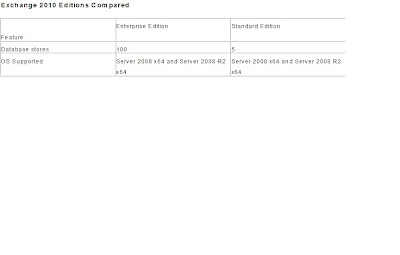
let us see the difference between exchange 2010 editions,

Exchange server 2010 Standard Edition

The main difference between two editions is that Standard edition only supports 5 database stores. This can be a major issue with medium to large companies as Microsoft recommends only 100-200GB max per data stores. This version is ideal for CAS and HUB server role for medium to large companies as Enterprise edition will not provide addition features on these server roles.

Exchange server 2010 Enterprise Edition

Enterprise version supports 100 mailbox databases compare to standard. Enterprise edition is a must have for mailbox server role in medium to large companies.


Thursday, June 16, 2011

Kaspersky 8 Update Availability – forefront SP2 Rollup

The below are some information for the exchange administrators on up gradation of forefront SP2 rollup3 for getting the Kaspersky engine 8 update.

1. Upgradation is an straight forward process, don’t panic after the up gradation also the engine folder name and in GUI mgt console it shows as kaspersky5 though the engine kaspersky8. As per Microsoft “The Kaspersky engine's names incorporates the version number '5'. Even after installing this hotfix rollup, the engine name for Kaspersky will still be "Kaspersky5" in both logs and within the Forefront Administrator client. This is purely a cosmetic issue and does not affect functionality.” So it’s fine.

2. New Engine updates are quite bigger in size compared to the old engines. So the default scan engine update time needs to be increased in the server through regedit. Also the incremental type of engine download is not available with rollup2, whereas rollup3 does have incremental type engine update

HKLM\SOFTWARE\Wow6432Node\Microsoft\Forefront Server Security\Exchange Server
•Open Regedit
•Navigate to the following key:
HKLM\SOFTWARE\Wow6432Node\Microsoft\Forefront Server Security\Exchange Server
•Click New DWORD Value
•Type EngineDownloadTimeout, and then press ENTER
•Right-click the new value and select Modify
•Select Decimal as the base, enter 600 in the Value data box, and then click OK. This setting causes the scan engine download process to time out after 600 seconds (10 minutes, instead of 5 minutes)
•Exit Regedit

3. On cluster make sure LocalEngineMapping.cab has been copied to the shared resource location else the engine update will fail in the clustered mailbox servers. For other roles, the file will be automatically updated in the correct installation folder itself.

As mentioned in the Microsoft site,

To install the hotfix rollup on a SCC cluster, choose one of the following methods:
Method 1
To install this particular hotfix on a SCC cluster, you should perform upgrades on all active nodes first. Setup will prompt you to allow it to take resources offline and bring them back online automatically. Check that all resources are online, and that all Forefront and Exchange services have been started afterwards. You should manually bring resources online / start services, if necessary. Once you have upgraded the active nodes, do not failover. Finally, upgrade each passive node in turn.
Installing on all active nodes first means that Forefront will be able to access the DatabasePath location, where it needs to copy a file to (LocalEngineMapping.cab).

Method 2
If you prefer not to upgrade on active nodes, you may perform a “rolling upgrade” where you install on each node only when it is in a passive state. This involves performing a series of failovers, so that each node has a chance to become passive. Once all nodes have been upgraded, you must copy LocalEngineMapping.cab from each active node’s local installation to the shared disk folder for the CMS. Forefront needs this file in the following shared disk location, in order to be able to upgrade the Kaspersky engine to version 8.
Copy LocalEngineMapping.cab from each active node’s local installation (source) to its shared disk folder (target):
Source location: \Program Files (x86)\Microsoft Forefront Security\Exchange Server
Target location: \ForefrontCluster\Engines\
Notes:
a. There is no need to restart any services or failover the cluster after you have copied LocalEngineMapping.cab to the shared disk folder.
b. If you do not copy LocalEngineMapping.cab to the shared disk folder, Forefront will continue to try to update version 5 of the Kaspersky engine (which will be retired by Microsoft after 31st January 2011).

4. After the up gradation, if the old obsolete engines are still showing, then try renaming the scandisk.fdb and template.fdb (after stopping the forefront services). On restarting the service rebuild the two files, thereby will get the latest working engines alone.

5. In case of any engine update failure, check progromlog.txt which captures the complete engine update events with timestamp and neat descriptions.

Hope the information is useful.

Thanks
Logan

Tuesday, February 1, 2011

Exchange 2010: DAG Features

Hi friends,

It’s been a while since I wrote an article, busy with the office work. Let’s move on. This article gives you what is DAG and its new feature and how it is different from the previous exchange versions.

Database Availability Group is one of the most expected new features of Exchange 2010. Microsoft has invested more time in reviewing the high availability feature of the mailbox resources.

Reason for the DAG:

1. In multisite CCR Cluster solution, the complexity in case of failures are more and especially in site resilience scenarios.
2. Features like CCR, SCC and SCR in exchange 2007 was not designed for the site resilience in the multi-site environment.
3. Hard time for engineers in handling the windows cluster dependent issues in failovers in multisite environment.
So conclusion, Simple and improved method for high availability feature is indeed a must on Exchange 2010.

Features removed from Exchange 2007:

1. No CMS or EVS concept or switches
2. No Storage group.
3. Limitation on having only Clustered Mailbox sever role without any other roles installed.
4. Exchange database is no more with the server level instead moved to Organization level.
5. No need to choose for installation of clusters or non-clustered mailbox at the start, can be done after deploying the server role (can call us incremental feature for deploying).
6. No LCR, SCC, SCR, CCR (but still there is trace of SCR and CCR patterns).

Features retained from Exchange 2007:

1. Uses Enterprise edition for DAG, since it uses limited part of Windows Failover Clustering.
2. Concept of seeding between the storage group copy with the queue length, replay time, etc. are retained in DAG as well.

New features of DAG:

1. They combined the SCR + CCR and derived a framework for high availability called DAG, which will be used for all deployment scenario - local or site or disaster cases.
2. Active Manager is the brain behind the switching/failovers. It is the replacement for the Exres.dll (Exchange Cluster resource DLL) of exchange 2007. There are two components for active manager, one called PAM – Primary Active Manager which decides on the active or passive copies and the other one called SAM – Standby Active manager which detects the failover and inform the PAM to initiate the failover.
3. Incremental Deployment i.e., forming cluster prior installing the exchange 2010 is not necessary anymore.
4. Database has been changed to the organization level from the Server level.
5. Limited dependency on Windows Failover Clustering – no more exchange application related entity are carried by the windows cluster instead you will have the limited dependency of Cluster database, heartbeat and the file share witness.
6. Co-existence with other Exchange roles since Exchange 2007 Clustered mailbox doesn’t work along with any other server roles.
7. Switch/Fail-overs much quicker than in the past.
8. Backup-less: No need to have the extensive backups/backup strategy of mailbox DB of more than 3 copies.
9. Support for DAG members in separate AD sites – member of DAG can be in different AD sites, but of Course should be of same domain within the forest.
10. Change in Log shipping: instead of SMB (Server Message Block) for shipping the log files, it uses the TCP protocol.
11. Availability of Log file Encryption and Log file compression.
12. Support for Public folder database is not supported in DAG instead it uses traditional Public folder replication mechanisms.
13. Truncation lag time value in Exchange 2007 SCR has been changed from 7 days to 14 days in Exchange 2010 DAG.

Hope the above is informative.

Thanks
Logan

Friday, January 29, 2010

New features Available in Exchange Server 2007 SP2:

Hi friends,
We all know the release of the Exchange 2007 SP2, making news around the corner. The below is the brief information about the new features that are avaiable with the SP2.

1. VSS Enabled plug-in supports exchange aware backups. WSBExchange.exe is the core plug-in file which gets installed while installing SP2. This feature is only available for exchange 2007 hosted in windows server 2008, since windows server backup feature is not available in the windows server 2003. Though it has some limitations when compared to the third party exchange aware backup application like veritas,etc. For further details check,


2. Enhanced Auditing options available. Using this we can have the granular auditing reports like folder access, message access in a mailbox, etc.

3. Improvement/change in the Schema Update. New Dynamic schema update method has been introduced in SP2, which will check for the conflicts when adding a new property to the schema which in turn will avoid the future conflicts.

4. Public folder quota management is the new improvement. Set-publicfolder is the cmdlet for this particular function.

5. Apart from the above, there are bunch of new cmdlets comes along SP2,

Add-AvailabilityAddressSpace
Export-Mailbox
Import-Mailbox
Move-Mailbox
New-ActiveSyncVirtualDirectory
New-ManagedFolder
Restore-Mailbox
Set-ActiveSyncVirtualDirectory
Set-CASMailbox
Set-IMAPSettings
Set-OABVirtualDirectory
Set-OrganizationConfig
Set-POPSettings
Set-PublicFolder
Set-TransportConfig
Test-ActiveSyncConnectivity
Test-OwaConnectivity
Test-WebServicesConnectivity

In the above, some of the cmdlets seems like they are already present before, but which were improved or changed for better purposes in SP2. For eg, in import-mailbox cmdlet is not working as expected when we try for importing mails on particular date basis for large mailboxes.

6. The above mentioned are only the new features, SP2 contains all the bugs fix code which we all rolled out as a Roll ups.

Hope the above info is useful.

Thanks

Logan
Logu_microsoft@hotmail.com | 971-552596187

Sunday, December 27, 2009

Post Step after Exchange server 2010/2007 and Make it Live:

This article explains the post check steps that need to be carried after installation of internal exchange server for sending and receiving emails from internet. In other words, we are actually making the exchange server into the production world.

After the installation of all mandatory roles of exchange servers and if edge exist then after the synchronization of the edge server with the Hub transport server role, and of course after checking the internal mail flow, we need to perform the below steps to be carried out in the organizational level to make the external mail flow.

1. License Key feed.
2. Accepted Domain setting.
3. Configure Email address policy.
4. Configure a Send Connector to send email to the Internet.
5. In case if Edge server name is not used, then configure the hub transport to accept anonymous SMTP. By default, this option is not set.
6. Configure external certificate for the CAS server for public access.
7. Configure the CAS server according to your organization. The options like Outlook anywhere, Exchange Active sync, Outlook Web access - OWA (2010 called as Outlook Web app)

Thanks

Logan

971552596187 | logu_microsoft@hotmail.com

Saturday, November 14, 2009

Message Routing in Exchange 2007 vs. Exchange 2003 Multisite Environment:

The message routing architecture in multi site environment is always an interesting one to explore. We all know the role of routing groups and also routing group connector in exchange2003, this has been revised in fact completely modified in exchange 2007. Routing group and connectors concept has been removed in the exchange 2003. Lets us consider the below scenario for example,

Site1 – Amsterdam Main Office – subnet 10.10.0.0/16

Site2 – Auckland Branch Office – subnet 10.11.0.0/16

We can domain controller in both sites for user authentication and other domain info. We can also have DNS in both sites. So with the help of the site link (WAN link), we will be able to enable the replication b/w the sites. Now, coming to the messaging part, we have only option to use the routing group and connector for message transport b/w the sites. Since active directory sites and Exchange server routing groups are independent one, i.e. not compatible with each other.

Exchange 2007 has the new feature that Hub transport server role has been built in a manner that it will use the active directory sites for the message routing. In this case, transport hub server in Amsterdam will use the active directory site link to route the message to the hub transport server in Auckland and vice versa.

I end up here; you people can explore more in this for more detail. Hope the above is informative.

Thanks
Logan
9841499143 | Logu_microsoft@hotmail.com


Sunday, October 25, 2009

Configuring LCR – Local Continuous Replication:

Hi friends,

This article briefs the configuring LCR in the exchange 2007 server. As it name implies, the local continuous replication is the new feature in the exchange 2007 and it has the local copy of the database just like a mirror. Either you can do either in GUI or powershell, here I have explained in the powershell

Design the structure first, for example will have the below for our configuration,

SG1 – storage group name, SG1DB1 – database

Source system path (disk1): c:\SG1

Source log path (disk1): c:\SG1\log

Source edb path (disk1): c:\SG1\DB

Destination system path (disk2): D:\SG1LCR

Destination system path (disk2): D:\SG1LCR\log

Destination system path (disk2): D:\SG1LCR\DB

1. Enabling Database copy,

#Enable-DatabaseCopy –identity ‘servername\sg1\sg1db1’ –CopyEdbFilePath ‘D:\SG1LCR\DB\SG1DB1.edb’

2. Enabling Storage group copy,

#Enable-StorageGroupCopy –identity sg1 –CopyLogFolderPath ‘D:\SG1LCR\log’ -CopySystemFolderPath ‘D:\SG1LCR\DB’

3. To check the status of the replication,

#Get-StorageGroupCopyStatus

The LCR Configuration has been completed now; you can check the logs which are copied from the source to the destination and also any new generated logs will automatically seed to the destination location as we defined above.

Restore from the LCR copy:

Let us assume that if something goes wrong with the source database, we are in a position to restore from the replica. So, let’s see how to do the restore,

1. Dismount the database - #dismount-database sg1db1

2. Restore from replica - #Restore-StorageGroupCopy –identity ‘servername\sg1’

3. Mount the database back - #mount-database sg1db1

4. Now, the point to be noted is old LCR configuration of SG1DB1 is no more enabled. Please enable the LCR for this Storage group again and also clear the old logs so that it will start seeding from the source from the first.

Hope the above is useful.

Thanks

Logan

971-552596187 logu_microsoft@hotmail.com

Difference types of Mailbox in Exchange 2007:

Unlike previous version of exchange, the general mailbox has been classified into four types. But there are few difference b/w each type.

1. User Mailbox – for traditional user mailbox.

2. Room Mailbox – for meeting rooms

3. Equipment Mailbox – for equipments like projector, TV, etc. It is just like creating AD accounts for such objects.

4. Linked Mailbox – Hosting mailbox for users in separate forest.

In the above, the core mailbox attributes are same except few are different.

1. Basic notification GUI symbol is different for each object.

2. Resource mailbox (i.e., both room and equipment mailbox) are by default will be in the disabled state.

3. In OWA à Options, we have the “resource setting” only for the resource mailbox.

4. In creating a calendar meeting either in outlook or OWA, we have the scheduling assistant for configuring the meeting in which, “Select room” option will there and will list the entire room mailbox available in the organisation.

5. Also while adding attendees in the address bar, in the address book window; we will have the classified option as “default global address list” and “All rooms”. The latter is specifically designed to list the room mailbox alone.

6. On the attribute side, Isresource attribute of a mailbox will be set as “True” for the resource mailbox and “False ” for the user mailbox. The attribute resourcetype attribute will be set as “room” and “equipment” respectively.

Useful Powershell command:

To get the resource mailbox,

#get-mailbox where-object { $_.isresource –eq ‘true’ }

To get the resource mailbox related attribute,

#get-mailbox where-object { $_.isresource –eq ‘true’ } fl res*

To convert user mailbox to resource mailbox

#set-mailbox mailboxname –type room

Hope the above is useful.

Thanks

Logan

971-552596187 logu_microsoft@hotmail.com

Exchange server 2007 Services.

This article explains the different type of services, its description. Since exchange 2007 has so many new features, changes and different mailing architecture when compared to earlier exchange versions. We know that exchange server 2007 has five different server roles which has its specific services. In this article, I am going to concentrate only on the exchange specific services, though there are many dependent services like WWW, RPC, WMI and etc.

Common Services on all Server roles:

The below services are present in all five server roles,

1. Microsoft Exchange Active Directory Topology Service: This is the core exchange services which communicate with AD often. This service uses DSACCESS component for accessing the active directory. Since, AD tightly integrated with Exchange, all server roles will have this service up running.
2. Microsoft Exchange Monitoring Service: This service is responsible for collecting all kind of diagnostic logs from the exchange application.

Services in Mailbox server role:

1. Microsoft Exchange information store: This is the service related to core exchange databases. It is the main services in the Mailbox server role and this is services is not dependent to other exchange services.
2. Microsoft Exchange Mail Submission: This service maintains the mail queue for transferring mails from mailbox server to hub transport server. Used to notify a Hub Transport server located in the Mailbox server's Active Directory site that messages are ready for retrieval from a sender's outbox. This service is also responsible for relaying and other tasks like Transport rules, Message Records Management etc.
3. Microsoft Exchange mailbox assistants: Provides functionality for Calendar Attendant, Resource Booking Attendant, Out of Office Assistant, and Managed Folder Mailbox Assistant.
4. Microsoft Exchange Replication Service: This service responsible for the replication of database information in the LCR and SCR cluster environment. This does the log shipping/seeding b/w the cluster peers.
5. Microsoft Exchange Search Indexer: This service is responsible for indexing the mail content in the database which in turn helps in improving the faster access/searching of the mail contents.
6. Microsoft Exchange Service Host: Configures the RPC virtual directory in Internet Information Services (IIS), and registry data for Valid Ports, NSPI Interface Protocol Sequences, and Allow Anonymous for Outlook Anywhere. It basically acts as a host for holding exchange related services like IIS.
7. Microsoft Exchange System Attendant: This service is responsible for following components. It provides maintaining, monitoring and directory lookup services functionality.
• DSAccess (DSAccess.dll) – Provides Exchange Active Directory Access
• DSProxy (DSProxy.dll) – Provides Directory Service Lookup for older Outlook clients
• Server Monitor Component - Monitoring server resources
• Mailbox Manager Component - Managing mailboxes
• Metabase update service - Replicating settings from Active Directory to the IIS metabase
• System Attendant Component - Verifies computer account configuration
8. Microsoft Exchange Transport Log Search: Provides message tracking and transport log searching. It is basically used for querying of transport log remotely.
9. Microsoft Search (Exchange): Provides full-text indexing of mailbox data content. This is a Microsoft Exchange-customized version of Microsoft Search.

Services in CAS Servers:

1. Microsoft Exchange File Distribution: Used to distribute offline address book and custom Unified Messaging prompts.
2. Microsoft Exchange IMAP4: Responsible for Internet Message Access Protocol IMAP4 Clients connections.
3. Microsoft Exchange POP3: Responsible for Post Office Protocol POP3 Client connections.
4. Microsoft Exchange Service Host: Configures the RPC virtual directory in Internet Information Services (IIS), and registry data for Valid Ports, NSPI Interface Protocol Sequences, and Allow Anonymous for Outlook Anywhere. It basically acts as a host for holding exchange related services like IIS.

Services in Hub transport Servers:

1. Microsoft Exchange Anti-Spam Update: Used to automatically download anti-spam filter updates from Microsoft Update.
2. Microsoft Exchange Edgesync: Connects to ADAM instance on subscribed Edge Transport servers over secure Lightweight Directory Access Protocol (LDAP) channel to synchronize data between a Hub Transport server and an Edge Transport server.
3. Microsoft Exchange Transport: This is the new SMTP service in exchange 2007, which don’t rely on Windows server SMTP services as like in previous version of the exchange. It is the core transport stacks which process the routing of messages.
4. Microsoft Exchange Transport Log Search: Provides message tracking and transport log searching. It is basically used for querying of transport log remotely.

Services in Edge Transport Servers:

1. Microsoft Exchange ADAM: Connects to ADAM instance on subscribed Edge Transport servers over secure Lightweight Directory Access Protocol (LDAP) channel to synchronize data between a Hub Transport server and an Edge Transport server.
2. Microsoft Exchange Anti-Spam Update: Used to automatically download anti-spam filter updates from Microsoft Update.
3. Microsoft Exchange Credential Service: Monitors credential changes in ADAM and installs the changes on the Edge Transport server.
4. Microsoft Exchange Transport: This is the new SMTP service in exchange 2007, which don’t rely on Windows server SMTP services as like in previous version of the exchange. It is the core transport stacks which process the routing of messages.
5. Microsoft Exchange Transport Log Search: Provides message tracking and transport log searching. It is basically used for querying of transport log remotely.

Services in Unified Messaging Servers:

1. Microsoft Exchange Unified Messaging: Provides Unified Messaging features, such as the storing of inbound faxes and voice mail messages in a user's mailbox, and access to that mailbox via Outlook Voice Access.
2. Microsoft Exchange Speech Engine: Provides speech processing services for Unified Messaging.

Hope the above is informative.

Thanks
Logan

971-552596187 logu_microsoft@hotmail.com
Types of clustering in exchange 2007:

This article explains the different types of clustering technology available with the exchange 2007 server. The exchange 2007 version has some new exciting features in terms of the high availability. It has four types of clustering and which has its own level of fault tolerance and availability. I have also added the diagram for better understanding.

1. Single copy clusters(SCC):

# This cluster type is similar to the one as in previous exchange versions. In fact it is exactly similar to the one in exchange 2003.

# Uses a single copy of database is shared between the nodes of the cluster.

# The database copy is stored in the SAN Storage device and also at any point of time the database will be owned by single node.

# Fault tolerance – There is chance of SOP i.e., Single point of failure. SCC environment works great if a node/server fails, but still Database failure in the SAN will cause the damage.


2. Local Continuous Replication (LCR):

# This is the new feature of exchange 2007.

# LCR is a single server solution which creates and maintains a copy of the database in the same server just like a mirroring concept.

# This cluster type provides usual log shipping, log replaying and can be switched to the mirror copy by manual action in case of any database issues.

# One prerequisite for implementing LCR is that Storage Group can contain only one database. So if you need to implement multiple databases you automatically need to implement multiple Storage Groups.

# This overcomes the drawbacks of single point of failure for database crashes, but it doesn’t help in server failure.

# Automatic failover will not happen, in case of database failure or any issue.


3.Cluster Continuous Replication (CCR):

# This is the new feature of exchange 2007. It is the best and highly improved version of clustering solution

# This cluster type is non-shared one, fault tolerant in terms of server and database front, high availability and site resilience. CCR is very different from clustering in previous exchange versions.

# CCR is a multi server solution which creates and maintains a copy of the database in the second servers in a failover cluster.

# CCR will automatically failover in case of any server related issues and also database related failures. So no need of manual switch action as in LCR.


4. Standby Continuous replication (SCR):

# This is the new feature introduced in exchange 2007 SP1.

# SCR is a clustered solution that is used to have the standby copies of the clustered server databases. As by its name, we can call as standby recovery servers.

# SCR uses the same log shipping and replay technology used by LCR and CCR. It is just getting seeded by and from either CCR or LCR cluster server.

# This is ideal for the situation like you need to recover from the complete site failure. We can call this for disaster recovery.


Hope the above is informative.

Thanks

Logan

971-552596187 logu_microsoft@hotmail.com

Wednesday, September 30, 2009

Recipient limit feature in exchange server 2003 and 2007

This article explains the working of recipient limit feature in both exchange 2003 and 2007 server versions. Many people will have a questions on how the distribution list recipient is counted ?, in fact there is change in the working of recipient limits in exchange 2007 compared to the older exchange 2003 version.

In Exchange 2003:
In processing of email message, the recipient limits are applied after the expansion of the recipients. The expansion is nothing but the designated expansion server will expand all group lists, it will have the individual and non-duplicated recipient entries. So, if a user is having a recipient cap set to 50, when a user try to send a mail to a distribution list of 60 members, the result only the first 50 users of the expanded list will receive the mail, for the rest it will through the respective NDR.

In Exchange 2007:
But, in exchange 2007, the recipient limits are applied in the hub transport server role before the expansion of the recipient limits. In simpler words, expanded DL members are not counted in turn it will be counted as a single recipient. So, if a user is having a recipient cap set to 50, when a user try to send a mail to a distribution list of 60 members, the result all the users will be able to receive the mails henceforth it just count DL as a single recipient.

Hope the above is informative

Thanks
Logan
971-552596187
Logu_microsoft@hotmail.com

Saturday, August 22, 2009

Deploying Edge Transport Server Role:

This article gives you the step by step procedure for installing the Microsoft exchange server 2007 – edge server role and configuring the connection with the hub transport server. As we now, edge server role is used as the front end security wall with antispam and antivirus protections and not parted of domain, which is basically hosted in the DMZ zone.

1. Basic server check-up likes recommended hardware resources and server 2003/2008 OS, latest SP and appropriate patches.

2. N/w Card configuration – Two NIC cards, one for public/external and the other for private/internal.

3. Check the Name resolution between hub transport and the edge server. Also configure the edge server for the external name resolution.

Set-TransportServer -Identity ExEdge01 –ExternalDNSAdapterEnabled $false –ExternalDNSServers

Note : If the name resolution b/w hub and edge server doesn’t work, then the edge synchronisation fails.

4. Installing ADAM SP1 : Active Directory Application Mode SP1 is the one which acts as a tunnel passage for passing the limited AD related i.,e Domain related information from Hub transport server to the edge server.

5. Install Core edge exe : Run the setup.exe from the exchange installation disk, go for the custom type installation, select the edge server and complete the installation.

6. Check the Edge related configuration EMC, will find option like antispam, accepted domains and others, I will leave this up to you for exploring.

7. Since Exchange 2007 rollup 4 has some important updates, install the rollup 4 package also.

8. Restart the edge server after completing the above and run the command “test-servicehealth” to check all edge related services are up and running.

9. Ports to be opened : Edge server used custom ports for communication with the hub server. If firewall is placed in b/w hub server and edge server, the following ports have to be opened.

• LDAP 50389/tcp
• Secure LDAP 50636/tcp
• SMTP 25/tcp
• RDP 3389/tcp (optional)

10. Creating the edge subscription file in Edge server,

New-EdgeSubscription -FileName "C:\EdgeSubscriptionInfo.xml"

11. Copy the xml file to the Hub server.

12. Mapping the edge subscription file in Hub Server,

New-EdgeSubscription -filename "C:\EdgeSubscriptionInfo.xml" -CreateInternetSendConnector $true -site "Default-First-Site-Name"

13. By Default, the edge synchronisation happens at four hour intervals. For immediate sync,

Start-EdgeSynchronization

14. Edge server is ready, just verify connectors in Edge EMC console, will show the current hub server related connectors.

Hope the above is informative.

Thanks
Logan
Logu_microsoft@hotmail.com | 971552596187

Saturday, August 15, 2009

To list the DB size in all mailbox server

This script can be used to list the each database size in the exchange org. This can be easily modified as per your need.

###############################################

# Script for finding all the database size in GB present in the organization.
# please use redirect '<' for reporting# Eg, .\Tofinddbsize.ps1 > report.txt

$exchangeservers = Get-ExchangeServer where-object {$_.admindisplayversion.major -eq 8 -and $_.IsMailboxServer -eq $true }

foreach ($server in $exchangeservers)
{
$db = Get-MailboxDatabase -server $server
foreach ($objItem in $db)
{
$edbfilepath = $objItem.edbfilepath

$path = "`\`\" + $server + "`\" + $objItem.EdbFilePath.DriveName.Remove(1).ToString() + "$"+ $objItem.EdbFilePath.PathName.Remove(0,2)

$dbsize = Get-ChildItem $path $ReturnedObj = New-Object PSObject

$ReturnedObj Add-Member NoteProperty -Name "Server\StorageGroup\Database" -Value $objItem.Identity

$ReturnedObj Add-Member NoteProperty -Name "Size (GB)" -Value ("{0:n2}" -f ($dbsize.Length/1024MB))

Write-Output $ReturnedObj
}
}

###############################################

Thanks

LOGAN

logu_microsoft@hotmail.com 971552596187

To find the disconnected mailbox in the mailbox servers.

This script can be used to find the disconnected mailbox in your exhange organisation by just giving display name as input. This will be helpful if you have many mailbox servers in your org. The below script has been tested and works fine.

###################################################

Write-Host
$search = read-host "Type part of DisplayName Ex Tom* *sson *middle* , searching mailbox servers one by one... "

Write-Host
Write "Press ctrl-C to stop search once you found your mailbox"

$exchangeservers = Get-ExchangeServer where-object {$_.admindisplayversion.major -eq 8 -and $_.IsMailboxServer -eq $true }

foreach ($server in $exchangeservers)
{

Write-Host
Write "Searching $server"

Get-MailboxStatistics -Server $server where { $_.DisconnectDate -ne $null } where { $_.DisplayName -like "$search" } fl

}

Write-Host
Write "Finished"

################################################

Thanks

Logan

logu_microsoft@hotmail.com 971552596187

Wednesday, August 12, 2009

Find the mailbox count per db in a server

This script can be used to find the mailbox count per database by giving the mailbox server name. This can be modified easily as per your need.

#####################################################

# script for finding the no of mailbox's per mailboxdatabase
write-host $server = read-host "Type the server name:"
foreach ($db in get-mailboxdatabase -server $server)
{
if ($db.getType().fullname -like "*PublicFolderDatabase")
{
$dbType = "Public"
}
else
{
$dbType = "Private"
$dbUserCount = (get-mailbox -database $db -erroraction silentlycontinue).count
}
$retObj = new-object psobject
$retObj add-member noteproperty -name "Server" -value $db.Server
$retObj add-member noteproperty -name "Name" -value $db.Identity
$retObj add-member noteproperty -name "Users" -value $dbUserCount
$retObj
}

#################################################

Please let me know if you have any queastions.

Thanks

Logan
logu_microsoft@hotmail.com 971552596187

Find the mailbox which exceeds the quota limit

The below is the script to find the mailbox in which the mailbox size limit has been exceeded.

##################################################

#Script to find the mailbox which exceeds the quota limit
#in the mailbox server.
Write-host
$server = read-host "Please Enter the Mailbox server name:"
get-MailboxStatistics -server $server where {"IssueWarning","ProhibitSend","MailboxDisabled" -contains $_.StorageLimitStatus} format-Table DisplayName,database,storagelimitstatus,Totaldeleteditemsize,TotalItemSize

###################################################

Thanks

Logan
971552596187

Sunday, July 13, 2008

Outlook Web Access – OWA in Exchange 2007:

In this article, we are going to discuss all the new features that are available in the exchange 2007 OWA and also related configuration. The OWA is handy for many users in accessing their email when compared to the outlook client when they are out of their organization, probably when they are travelling different places. They will be able to access their email with ease even though they don’t have the laptop.

Key new OWA features:

1.Web ready documents allow opening office docs.
2.Email headers view.
3.Customizable toolbars.
4.Out of Office configuration.
5.Deleted Item recovery.
6.Instant language options.
7.Cleaner Calendar reminders.
8.Multiple calendars and drag gable appointments.
9.Mobile device configuration options.
10.Change password interface.
11.Open other’s mailbox within OWA.

Light vs. Premium Client

Light Version:
1.For non-IE browsers.
2.For slow connections.
3.For older systems.
4.Most secure/best for kiosks
5.Contains basic access to all resource types.

Full Version:
1.More feature-rich.
2.Deeper interaction with mailbox content.
3.Drag and drop.
4.Access to file servers and SharePoint.

Thanks

Logu

Logu_microosft@hotmail.com
91-9841499143

Sunday, July 6, 2008

Address List:

In this article, we are going to discuss about the functions of the address list in exchange server 2007 version. In simple words, address list contains the classified details of the contact address (user’s email address, mail contacts, public folder email address, distribution email address, etc). The address lists are built to make lookups more useable than the basic Global Address List. The Global Address list contains all the address in the exchange directory (in short contains all mail enabled objects), and by default this is available in all email clients. This pre-canned address book will suffice for small-midsized businesses. The custom address list can be created as per your company needs.

Global Address List:

1. A list from the AD with all mail-enabled containers in it.
2. By default, it is provided to every user within Outlook and OWA.
3. Additional GALs can be created for hosting environments that need isolation.

Offline Address Book:

1. Allow users to get AD info while offline.
2. It is available to both internal and external users.
3. Are distributed via web-site and via Public folder.

Dynamic Distribution Group:

1. Groups can be built based on AD properties like Department, State or Company.
2. Dynamic security group is not feasible; one dynamic distribution group is possible. For example, Suppose I need to create a group on the basis of company name and city location (custom attribute1). The above can be done by creating the dynamic distribution group. Any new addition which matches the above condition will be automatically added to the distribution group, that’s the reason why it s called as Dynamic.
3. Especially useful for location-specific communications.
4. Can’t be used as security groups.
5. Create them in the Group sub-node of the Recipient node.
6. Non-wizard filtering criteria can be used if you use the New-DynamicDistributionGroup cmdlet.
#New-DynamicDistributionGroup –Name “Groupname” –Alias “ABC_Company” –IncludedRecipeints “MailboxUsers,MailContacts” – OrganizationalUnit “Domain.com/Users” –ConditionalCompany “Domain”

Best Practice:

1.Address List:

a. Don’t create any unless you really need them, and then keep it simple.
b. Make list names clearly descriptive of contents.

2.Global Address List:

a. Stick with the default one if at all possible.
b. Create new ones only for client based isolation.

3.Dynamic Distribution List:

a. Make use of this group.
b. Don’t forget about the value of the non-wizard Dynamic lists.

Hope the above is informative.

Please feel free to contact me for any questions.

Thanks
Logu

Logu_microsoft@hotmail.com
91-98414 99143.

Public folder in the exchange server 2007:

In Simple words, the Public folder is just like a general forum which is used for posting mails, documents and other common information. Actually, usage of public folder has been overcome by SharePoint portal services. Exchange server 2007 is de-emphasized i.e., there is no change or improvement in the public folder architecture in the 2007 version. Microsoft no more support public folders. This article explains the working of the public folders in the exchange 2007 server.

Public folder function:

  1. Public folder data is kept in the public folder database.
  2. Multiple replicas of a public folder can be maintained on separate servers.
  3. Any sort of folder data can be kept in a public folder.
  4. Public folders can be given their own email address.
  5. You can configure Send-as permission on a public folder.

Public folder Creation:

In the EMC, go to toolbox PFMC – Public folder management console.

#New-Publicfolder –name TESTPUBLICFOLDER –path ‘\’ –server ‘servername’

Assigning PF Permission and PF Email address:

1.Setting Permission can be done from Outlook or the EMS.

2.There are two ways to give admin permission via EMS:

a.Add-PublicFolderadministratorPermission - Per-PF.
b.Add-ExchangeAdministrator - General Admin rights, including to PF root.

3.The easiest way is to use Add-PublicFolderClientPermission to assign ownership

#Add-PublicFolderClientPermission –Identity \TESTPUBLICFOLDER –User USERALIASNAME –AccessRights FolderOwner

4.Check permission of the PF using the Outlook or in EMS with

Get-PublicFolderClientPermission
Set perms with Add/Remove/Set-PublicFolderClientPermission

#Get-PublicFolderClientPermission \TESTPUBLICFOLDER list

5.You can use either the EMC or the EMS to mail-enable a public folder.
#Enable-MailPublicFolder \TESTPUBLICFOLDER

6.Check whether a PF is mail-enabled

#Get-PublicFolder list mailenabled
#Get-MailPublicFolder

7.Send-As Permission can be done in the console.

Hope the above is informative.

Please feel free to contact me for any questions.

Thanks

Logu

Logu_microsoft@hotmail.com

91-98414 99143.

Exchange 2007 Database

This article explains the architecture of the exchange 2007 database and also about its new feature when compared to the previous versions. As we aware exchange 2003 database uses the .edb (rich text file) and .stm files(streaming file). For more details please refer my blog session. In simple words, the rich text file holds the actual messages, the rich text information and the Message Application programming (MAPI) information. The streaming file holds non-MAPI information like MIME contents. There is no more .stm file, all stored in .edb file.

How Exchange stores data:

Database built on a heavily extended version of JET. The JET Database is an old and simple database type which is used for all mail storage in the exchange 2007. Why Microsoft relying on the JET still?, it’s a bit interesting stuff. Microsoft doesn’t want to change the database from JET to SQL database because already in exchange 2007 has enough changes like 64 bit architecture and many other new improved features. Single Instance Storage (SIS) provides large disk space saving. SIS is nothing but, when you send 1 MB attachment mail for 10 users, actually only one copy (1 MB of file) is stored in the DB. Databases use transaction logs (and memory) to initially store data. The mail flow exist as below

All incoming mails à transaction log à Database

Transaction log is like heart beat of the database. All the message routing is logged in a file before getting into the database (edb file) is called the transaction log. The analogy behind this transaction log is used for the restoring the recent data of the database in times of disaster. After successful backup, the committed logs are removed in order to avoid the disk space accumulation. So the last full backup copy plus the uncommitted transaction log will reproduce the recent copy of the database.

Storage Capacity:

In exchange, the maximum storage limit for a database is restricted to certain level, whereas in exchange 2007, it is unlimited theoretically. Please find the difference b/w the standard and enterprise edition in terms of the storage capacity.

In Standard edition:Storage group – up to 5,Database per SG – up to 5,Database limit – 16 TB.
Enterprise edition: Storage group – up to 50,Database per SG – up to 50,Database limit – 16 TB.

The above are the storage limits of the databases, but there are some size caps. The size caps are nothing but artificial size limit set at the registry level. For example for standard edition, there is artificial 50 GB cap on database sizes (for SP1 = 150 GB). This can be increased as per your wish and need, by just creating some entry in the registry as below.

HKLM\system\currentcontrolset\services\MSexchangeIS\servername\private{respective-DB-GUID}

In the above location just add a new DWORD value “Database Size Limit in GB” and set the decimal value as 200 (in this case increasing the size limit to 200 GB). In addition, the default mailbox size limit is 2 GB (can be changed).

Difference b/w exchange 2007 database and the previous version:

The following the differences between the exchange 2007 database and the exchange database of older version.

  1. The name of the store has been changed to Database.
  2. There is no more .stm file anymore. All data is in the .edb file.
  3. Transaction logs have shrunk from 5 MB to 1 MB.
  4. Transaction log numbering limits have been expanded from a million to 4 billion.
  5. Lost Log Resilience keeps last several log files in memory.

Relationship b/w Storage groups and Database:

  1. Storage groups are virtual containers for databases.
  2. They can hold up to five databases each.
  3. Transaction logs are handled at the storage group level.
  4. LCR – Local Continuous Replication - is a new feature of exchange 2007 will enables us to have a copy of the database in some other location. LCR can be used only if you use single database per storage group.

Guidelines for Best practices:

  1. Try 1:1 model for storage groups and databases.
  2. Isolate DB and transaction logs on separate disk for redundancy purpose.
  3. Leave Circular logging disabled.
  4. Perform regular Full backups.
  5. Check the available disk space for the transaction logs because it increases in faster rate and occupies plenty spaces.
  6. If you have multiple DB’s, set maintenance schedules so they don’t conflict each other.
  7. If it is 1:1 model, make use of LCR-Local Continuous Replication option.
  8. Don’t forget about the artificial size cap.

Hope the above is informative.

Please feel free to contact me for any questions.

Thanks

Logu

Logu_microsoft@hotmail.com

91-98414 99143.