Showing posts with label Exchange 2010. Show all posts

Monday, March 26, 2012

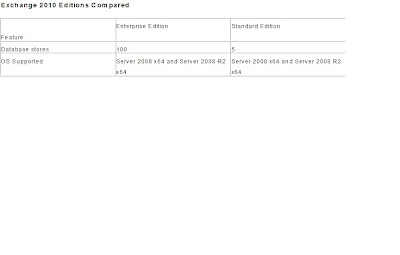
Exchange edition compared

let us see the difference between exchange 2010 editions,

Exchange server 2010 Standard Edition

The main difference between two editions is that Standard edition only supports 5 database stores. This can be a major issue with medium to large companies as Microsoft recommends only 100-200GB max per data stores. This version is ideal for CAS and HUB server role for medium to large companies as Enterprise edition will not provide addition features on these server roles.

Exchange server 2010 Enterprise Edition

Enterprise version supports 100 mailbox databases compare to standard. Enterprise edition is a must have for mailbox server role in medium to large companies.


Saturday, June 25, 2011

JBOD vs RAID : Storage


On the Introduction of DAG in exchange 2010, the cost involved in the storage disks can have the flexible options. The below blog explains the pros and cons of usage of JBOD vs RAID storage.


Adding to that, the below is the basic difference between the JBOD and RAID Disks.


Hope the above is informative.

Thanks

Logan


Thursday, June 16, 2011

Kaspersky 8 Update Availability – forefront SP2 Rollup

The below are some information for the exchange administrators on up gradation of forefront SP2 rollup3 for getting the Kaspersky engine 8 update.

1. Upgradation is an straight forward process, don’t panic after the up gradation also the engine folder name and in GUI mgt console it shows as kaspersky5 though the engine kaspersky8. As per Microsoft “The Kaspersky engine's names incorporates the version number '5'. Even after installing this hotfix rollup, the engine name for Kaspersky will still be "Kaspersky5" in both logs and within the Forefront Administrator client. This is purely a cosmetic issue and does not affect functionality.” So it’s fine.

2. New Engine updates are quite bigger in size compared to the old engines. So the default scan engine update time needs to be increased in the server through regedit. Also the incremental type of engine download is not available with rollup2, whereas rollup3 does have incremental type engine update

HKLM\SOFTWARE\Wow6432Node\Microsoft\Forefront Server Security\Exchange Server
•Open Regedit
•Navigate to the following key:
HKLM\SOFTWARE\Wow6432Node\Microsoft\Forefront Server Security\Exchange Server
•Click New DWORD Value
•Type EngineDownloadTimeout, and then press ENTER
•Right-click the new value and select Modify
•Select Decimal as the base, enter 600 in the Value data box, and then click OK. This setting causes the scan engine download process to time out after 600 seconds (10 minutes, instead of 5 minutes)
•Exit Regedit

3. On cluster make sure LocalEngineMapping.cab has been copied to the shared resource location else the engine update will fail in the clustered mailbox servers. For other roles, the file will be automatically updated in the correct installation folder itself.

As mentioned in the Microsoft site,

To install the hotfix rollup on a SCC cluster, choose one of the following methods:
Method 1
To install this particular hotfix on a SCC cluster, you should perform upgrades on all active nodes first. Setup will prompt you to allow it to take resources offline and bring them back online automatically. Check that all resources are online, and that all Forefront and Exchange services have been started afterwards. You should manually bring resources online / start services, if necessary. Once you have upgraded the active nodes, do not failover. Finally, upgrade each passive node in turn.
Installing on all active nodes first means that Forefront will be able to access the DatabasePath location, where it needs to copy a file to (LocalEngineMapping.cab).

Method 2
If you prefer not to upgrade on active nodes, you may perform a “rolling upgrade” where you install on each node only when it is in a passive state. This involves performing a series of failovers, so that each node has a chance to become passive. Once all nodes have been upgraded, you must copy LocalEngineMapping.cab from each active node’s local installation to the shared disk folder for the CMS. Forefront needs this file in the following shared disk location, in order to be able to upgrade the Kaspersky engine to version 8.
Copy LocalEngineMapping.cab from each active node’s local installation (source) to its shared disk folder (target):
Source location: \Program Files (x86)\Microsoft Forefront Security\Exchange Server
Target location: \ForefrontCluster\Engines\
Notes:
a. There is no need to restart any services or failover the cluster after you have copied LocalEngineMapping.cab to the shared disk folder.
b. If you do not copy LocalEngineMapping.cab to the shared disk folder, Forefront will continue to try to update version 5 of the Kaspersky engine (which will be retired by Microsoft after 31st January 2011).

4. After the up gradation, if the old obsolete engines are still showing, then try renaming the scandisk.fdb and template.fdb (after stopping the forefront services). On restarting the service rebuild the two files, thereby will get the latest working engines alone.

5. In case of any engine update failure, check progromlog.txt which captures the complete engine update events with timestamp and neat descriptions.

Hope the information is useful.

Thanks
Logan

Monday, March 7, 2011

New features in the unified messaging of Exchange 2010

Hi Friends,

In this article, let’s see the new features in the unified messaging of Exchange 2010.

The following is a list of new Unified Messaging features that have been included in Exchange 2010:

  • Personal auto attendants (call answering rules)
  • Additional language support including in Outlook Voice Access and Voice Mail Preview
  • Enhancements to name lookup from caller ID
  • Voice Mail Preview
  • Messaging Waiting Indicator
  • Missed call and voice mail notifications using text messaging (SMS)
  • Protected Voice Mail
  • Built-in Unified Messaging administrative roles

For more information about the new Unified Messaging functionality and new voice mail features.

Functional Descriptions

Voice Mail Preview: Exchange Server 2010 will facilitate the cumbersome task of navigating through voice messages. With Exchange Server 2010 speech-to-text translation, the user can read the contents of the audio recording in the same fashion they would read an e-mail. Furthermore, if the resulting voice messages are opened using Microsoft Office Outlook 2010, the text of the voice mail preview will become "actionable". Recognized names, contacts, and phone numbers will all be identified with icons that the user can select to add contacts, call using Office Communicator, or send e-mail. To facilitate navigation of the audio, clicking in the text will cause the voice mail to jump to that word and continue playing.

Protected Voice Mail: Exchange Server 2010 solves the problem of unauthorized distribution of the messages by securing the message content, specifying the users who may access that content, and the operations that they may perform on it. It uses Active Directory Rights Management Services to apply Do Not Forward permissions to voice messages that are designated either by the sender (by marking the message as private) or by administrative policy. This prevents the forwarding of protected voice mails in a playable form to unauthorized persons, whatever the mail client used.

Message Waiting Indicator (MWI): Now with Unified Messaging, users are notified of the presence of new/unread voice mail by lighting the lamp and providing a count on their supported desk phone. Additionally, users can configure their text messaging notification account to receive the beginning content of the voice mail preview in the SMS.

Auto Attendant: Users are often looking for a person in an organization, but are unsure of the extension or exact phone information. Exchange Unified Messaging's Auto Attendant enables users to easily navigate to the person they are trying to reach when calling an organization with either the telephone keypad or speech inputs to navigate the menu structure, place a call to a user, or locate a user and then place a call to that user. An auto attendant gives you the ability to:

  1. Create a customizable set of menus for callers
  2. Define informational greetings, business hours greetings, non-business hours greetings, and holiday schedules
  3. Describe how to search the organization's directory and connect to a user's extension
  4. Enable external users to call the operator

Call Answering Rules: Unified Messaging enables users to have more control over their call flows. For a salesman, this could mean the difference between sending an important sales lead to his voice mail instead of finding him on his cell phone or home phone. Call Answering Rules present callers with custom greetings, Find-Me, and call transfer options, in addition to leaving a voice mail. Moreover, these rules can be preceded by conditions (such as caller-IDs, time-of -day and Exchange free/busy status), giving end-users greater control over how they can be reached over the phone.

Outlook Voice Access: Users now have control over their Inbox with Outlook Voice Access via a telephone keypad or voice inputs. This enables anywhere access to their mailbox when a user is away from a computer or Internet-connected device. Now users no longer have need to worry about being late for appointments or being disconnected when traveling, as they can instantly call into their mailbox to manage their calendar, contacts, and e-mail.

Enhanced Caller ID: Users can get more context and information about their callers with Enhanced Caller ID. Callers are often not a part of a user contact list or organization's directory. For these cases, Windows Live Search will be used to try and determine the calling party. If a match is found, the result will be placed on the calling line of the message to better inform the user where the call came from.

Language Support: More users can now listen to and interact with their e-mail and voice mail in their native language or dialect. Exchange Server 2010 offers a broad range of language support with support for 16 languages including three varieties of English, plus Mandarin, Cantonese, European and North American versions of Spanish and French, and several other European languages.

Thanks

Logan

Tuesday, February 1, 2011

Exchange 2010: DAG Features

Hi friends,

It’s been a while since I wrote an article, busy with the office work. Let’s move on. This article gives you what is DAG and its new feature and how it is different from the previous exchange versions.

Database Availability Group is one of the most expected new features of Exchange 2010. Microsoft has invested more time in reviewing the high availability feature of the mailbox resources.

Reason for the DAG:

1. In multisite CCR Cluster solution, the complexity in case of failures are more and especially in site resilience scenarios.
2. Features like CCR, SCC and SCR in exchange 2007 was not designed for the site resilience in the multi-site environment.
3. Hard time for engineers in handling the windows cluster dependent issues in failovers in multisite environment.
So conclusion, Simple and improved method for high availability feature is indeed a must on Exchange 2010.

Features removed from Exchange 2007:

1. No CMS or EVS concept or switches
2. No Storage group.
3. Limitation on having only Clustered Mailbox sever role without any other roles installed.
4. Exchange database is no more with the server level instead moved to Organization level.
5. No need to choose for installation of clusters or non-clustered mailbox at the start, can be done after deploying the server role (can call us incremental feature for deploying).
6. No LCR, SCC, SCR, CCR (but still there is trace of SCR and CCR patterns).

Features retained from Exchange 2007:

1. Uses Enterprise edition for DAG, since it uses limited part of Windows Failover Clustering.
2. Concept of seeding between the storage group copy with the queue length, replay time, etc. are retained in DAG as well.

New features of DAG:

1. They combined the SCR + CCR and derived a framework for high availability called DAG, which will be used for all deployment scenario - local or site or disaster cases.
2. Active Manager is the brain behind the switching/failovers. It is the replacement for the Exres.dll (Exchange Cluster resource DLL) of exchange 2007. There are two components for active manager, one called PAM – Primary Active Manager which decides on the active or passive copies and the other one called SAM – Standby Active manager which detects the failover and inform the PAM to initiate the failover.
3. Incremental Deployment i.e., forming cluster prior installing the exchange 2010 is not necessary anymore.
4. Database has been changed to the organization level from the Server level.
5. Limited dependency on Windows Failover Clustering – no more exchange application related entity are carried by the windows cluster instead you will have the limited dependency of Cluster database, heartbeat and the file share witness.
6. Co-existence with other Exchange roles since Exchange 2007 Clustered mailbox doesn’t work along with any other server roles.
7. Switch/Fail-overs much quicker than in the past.
8. Backup-less: No need to have the extensive backups/backup strategy of mailbox DB of more than 3 copies.
9. Support for DAG members in separate AD sites – member of DAG can be in different AD sites, but of Course should be of same domain within the forest.
10. Change in Log shipping: instead of SMB (Server Message Block) for shipping the log files, it uses the TCP protocol.
11. Availability of Log file Encryption and Log file compression.
12. Support for Public folder database is not supported in DAG instead it uses traditional Public folder replication mechanisms.
13. Truncation lag time value in Exchange 2007 SCR has been changed from 7 days to 14 days in Exchange 2010 DAG.

Hope the above is informative.

Thanks
Logan
Sunday, September 12, 2010

"Here you have" worm mail

Hi friends

"Here you have" worm mails after a decade.. Soon we can expect the update in one of the engine of the Microsoft forefront for exchange.

Can be blocked by putting a rule in the edge server/hub transport using the content filter or by transport rule..
FYI


Thanks
Logan

Saturday, July 3, 2010

SCOM 2007 Deployment

SCOM – System Center Operation Manager 2007 which is the successor of the MOM – Microsoft Operation Manager 2005, which is used for monitoring the Server, clients in the windows active directory environment. SCOM 2007 can be used for monitoring not only server and clients in the active directory which also includes network devices and other application like Exchange, SQL, ISA, etc. by the means of corresponding available Management Packs shortly called as MP. Deployment of SCOM 2007 is quote an easy task, this article focus on this.

1.Planning:
• Selecting the OS either 2003 or 2008.
• Selection of 32 bit or 64 bit processor (it is important that if you choose the 64 bit and the reliable database package like SQL 2005 must be in 64 bit due to the factor operational database compatibility).
• Operational installation account in AD e.g., ScomAdmin (make password never expires) and related permissions.
• Check the forest and domain functional levels.

2.Pre requisite:
Since the installation first page has the prerequisite option, on clicking that will give you the availability status. Still, the below are the items which needs to be installed before deploying SCOM 2007.

• IIS 6.0 and above (IIS 7.0 needs to select some additional features like iis 6.0 compatibility, basic authentication and few. So better side can select all the features and install )
• SQL 2005 SP2 and above (SQL 2005 SP1 or express version does work for SCOM 2007) and use the ScomAdmin account during the installation of the default instance of SQL.
• Dot Net framework 2.0 with SP2 and above (Dot net framework 3 is better)
• ASP.NET 2.0 and ASP.NET AJAX Extension 1.0
• Using the tool MOMADAdmin.exe tool create a container for operation manager in AD

MOMAdAdmin.exe {Management Group Name} {Ops Mgr admin Group} {Ops Mgr account} {Domain name}

Eg.,

MOMADAdmin.exe OpsMgr ScomAdminGroup ScomAdmin Logan.com

3.SetupOM.exe
Login with the SCOM admin account (SCOM operational account that we created in the AD and also we used the same account during the installation of the SQL as well)

• Select Install operation manager 2007 to start the wizard
• Accept the end license and enter the license key.
• Installation type – choose custom type and select all the components, make sure all components and sun components are selected for installing on the local disk drive.
• Management Group Name : Enter “OpsMgr” (something meaningful and which cannot be changed later)
• User account selection: select ScomAdmin from the AD.
• Database Instance and port (1433) – leave the default values.
• Database and log file option – leave the default values
• Select the Data file and log file location.
• Management Server Action Account: accept the default domain or local account.
• Enter the SDK and Config Service account either domain or local account.(Can use ScomAdmin also)
• On the web console, choose the Windows Authentication
• Microsoft Error reporting option, choose ‘No’ option.
• Customer experience improvement program option.
• Click Install option to start the installation.
• On the end, it will ask for the Encryption key for Backup and restore option (optional).

Thanks

Logan

Logu_microsoft@hotmail.com

Sunday, December 27, 2009

Online Move Mailbox feature in Exchange server 2010:

This article explains the Online Move Mailbox feature in the exchange server 2010. In the previous version of exchange, during the course of the mailbox movement, the resultant mailbox user cannot access his email. The downtime during the course of mailbox movement is still an area which needs an attention from the providers, Microsoft has rightly addressed this effectively by bringing in the new feature called Online Move Mailbox feature. By means of this, user mailbox can be moved between databases without affecting the online users. So users will be able to send and receive emails as normal on the course of the movement. This functionality has been named as ”MoveRequest” in exchange 2010.

In the exchange mixed mode environment, the MoveRequest works fine (i.e., the move is online) when you are trying to move mailbox from exchange 2007 to 2010 in transition phase. But unfortunately vice versa i.e., mailbox movement from 2010 to 2007 or 2010 to 2003, the move is offline.

Hope the above is informative.

Thanks

Logan
971552596187 | logu_microsoft@hotmail.com

Post Step after Exchange server 2010/2007 and Make it Live:

This article explains the post check steps that need to be carried after installation of internal exchange server for sending and receiving emails from internet. In other words, we are actually making the exchange server into the production world.

After the installation of all mandatory roles of exchange servers and if edge exist then after the synchronization of the edge server with the Hub transport server role, and of course after checking the internal mail flow, we need to perform the below steps to be carried out in the organizational level to make the external mail flow.

1. License Key feed.
2. Accepted Domain setting.
3. Configure Email address policy.
4. Configure a Send Connector to send email to the Internet.
5. In case if Edge server name is not used, then configure the hub transport to accept anonymous SMTP. By default, this option is not set.
6. Configure external certificate for the CAS server for public access.
7. Configure the CAS server according to your organization. The options like Outlook anywhere, Exchange Active sync, Outlook Web access - OWA (2010 called as Outlook Web app)

Thanks

Logan

971552596187 | logu_microsoft@hotmail.com

Saturday, November 14, 2009

Exchange Server 2010: Previous exchange server Coexistence

Exchange server 2010 have the option for coexisting with the previous version of Exchange server 2003 and 2007 in the same forest. It is not possible to have exchange 2000 or exchange 5.5 with the exchange 2010 in the same exchange organization. Integrating Exchange server 2010 into the existing exchange 2003 or 2007 is called the transition scenario, where as new deployment of exchange server 2003 in new active directory forest and then transferring/migrating the records across the forest is called migration scenario.

Hope the above is informative.

Thanks
Logan
971552596187

Wednesday, November 4, 2009

Exchange server 2010’s new features:

Hope, everyone are excited and waiting for the release of the exchange 2010. The below are some of the new features of the exchange 2010. I tried to put in simpler terms and have not described in detail, the idea is to have an overview of the exchange 2010 product. I have covered only the few important and major changes, apart from this there are still many other changes have been done. Please visit Microsoft site for more details.

1. DAG – Database Availability Group.
2. Improved Outlook Web Access called as outlook web app which has features like search options, favorites, attaching message to message, etc.
3. Edit option for user properties like username, telephone number in OWA.
4. ECP called Exchange control panel for organization level changes like user, group and distribution list creation/changes.
5. No More LCR and SCR clustering technology of exchange 2007 are removed and replaced by new Database Availability group.
6. Server Cluster failover technique also removed because still the so many system administrator are not comfortable in doing it. The Microsoft has come up with the effective and ease alternative for this.
7. No more storage groups term available in exchange 2010, so only database is the predominant one and other database files, transaction log and database type(JET) are same as of the exchange 2007.
8. SIS – Single Instance Storage is no longer available in exchange, means that traditional model has been changed. I.e. when you send a mail of 1 MB to 10 different recipients, the db potentially grows 10 MB. So obviously consumes for storage requirement but the performance on the database I/O has been improved drastically.
9. Database page file size has been increased from 4KB to 8KB, improving the I/O on the disk file system.
10. No more 32 bit processor support for testing also.
11. Microsoft is also gradually moving to the cloud technology. Microsoft Online Services helps to host the mailbox also. It can be 100% hosted or 100% in premise or can be also mixed environment.
12. Powershell V2 more powerful, also has a new feature called IDE Interactive Development Environment using which you can built a script and also run the output with the small output window. The option for remote management of exchange is also possible with Windows Remote Management, which is included with the Powershell V2.
13. Send mail GUI option available in the EMC for testing mail flow.
14. Active Directory Rights Management enables to have the control of the message after sending to the recipients like disabling the forward option of the confidential messages.
15. Cross premises routing is possible.
16. Enhanced disclaimer with HTML code, pictures, hyperlinks, etc is available.
17. In exchange 2007, after delivering the message from hub transport server to next hop, it will be deleted. The same in exchange 2010, the message will be deleted only after the successful receipt of the message from the next hop, in case of non-receipt, it will try to redeliver the message. This type reliable routing model is called as Shadow Redundancy Routing Model.
18. Role Based Access Model for implementing the permission for the administrative accounts.
19. Personnel archive folder option or can be called as Archive PST with all live mailbox.
20. Improved Unified messaging roles with some exciting new features like Voicemail preview, integration with SMS test message, additional language support, etc.

Hope the above is informative.

Thanks

Logan

Logu_microsoft@hotmail.com | 971552596187